Alfa Romeo Giulia/Stelvio 2.2 engine oil pressureCAN 2 Instrument Panel bridge
We present a CAN2IP (CAN 2 InstrumentPanel) device that is intended to display essential information that is unavailable in standard display modes.
Simple installation: plug the CAN2IP bridge into the OBD port and everything is ready!
You can connect an additional external 2.8" TFT screen to the CAN2IP bridge PRO via BlueTooth communication or any other device, if you want to create your own interface, application or DataLogger.
CAN2IP bridge PRO continuously sends data to any external BlueTooth device using ASCII SeralStream.
NOTE: CAN2IP bridge device does not work if SGW is installed in the car! In this case, you can install SGW bypass.
CAN2IP bridge LITE/PRO
- simple installation
- simple WiFi update for all future new versions (using mobile HotSpot)
- possibility to upgrade LITE > PRO
- the possibility of "custom" FW at the user's request
- CAN2IP bridge is compatible with 7" and 3.5" InstrumentPanel screens
- automatic "sleep" mode
- low consumption
TECHNICAL CHARACTERISTICS
CAN2IP bridge LITE/PRO
- ABS max DC input voltage 36.3V
- DC input voltage 10-16V
- OBD 12V DC pin reading tolerance <=2%
- DC Current (with BT) <=100mA (@12VDC input voltage)
- DC Current (without BT) 55-65mA (@12VDC input voltage)
- DC Current (sleep mode) <=15mA (@12VDC input voltage)
- Dimensions 100x48x24mm
CAN2IP bridge PRO EXT 2.8" "TFT
- DC input voltage USB 5V
- DC Current (with BT) <=250mA (@5VDC input voltage)
- Dimensions 97x60x19mm (w/o magnetic holder)
ACCESSORIES
OBD extension cable M+F approx. 30 cm
- If you want to 'hide' the CAN2IP bridge device, it is especially useful for Alfa Romeo Giulia vehicles that have a horizontally placed OBD connector
SGW bypass
- Very small dimensions: 42x35x22mm
- Original MOLEX connectors 8 pin + 12 pin
- Passive device, without any additional electronics
IMPORTANT NOTES:
* SGW (Security GateWay) is a very important security component that prevents unauthorized vehicle programming!
* Although the CAN2IP bridge does not make any modifications to the CAN devices in your vehicle, but only listens to specific CAN addresses and uses standard OBD PIDs to display information, the built-in SGW does not allow normal CAN communication, so it needs to be bridged, otherwise the CAN2IP bridge cannot work!
* Installation of the SGW bypass module is done at your own risk! In case of any problems, we are not responsible for any direct or indirect consequences in terms of disputing the vehicle warranty and other potential problems!
PRICES
* only applicable for AT8 gearboxes, MT6 do not have this display
** AT8: R/N/1/2/3/4/5/6/7/8 | MT6: R/N/1/2/3/4/5/6
Send us an inquiry at:
info@stage1.hr
CAN2IP bridge PRO EXT 2.8" TFT
Additional functionality for CAN2IP bridge PRO
- the possibility of connecting an additional external 2.8" TFT screen via BlueTooth communication
- the possibility of connecting any other device via BlueTooth communication (useful if you want to create your own interface, application or DataLogger)
* CAN2IP bridge PRO continuously sends data to any external BT device using ASCII SeralStream.
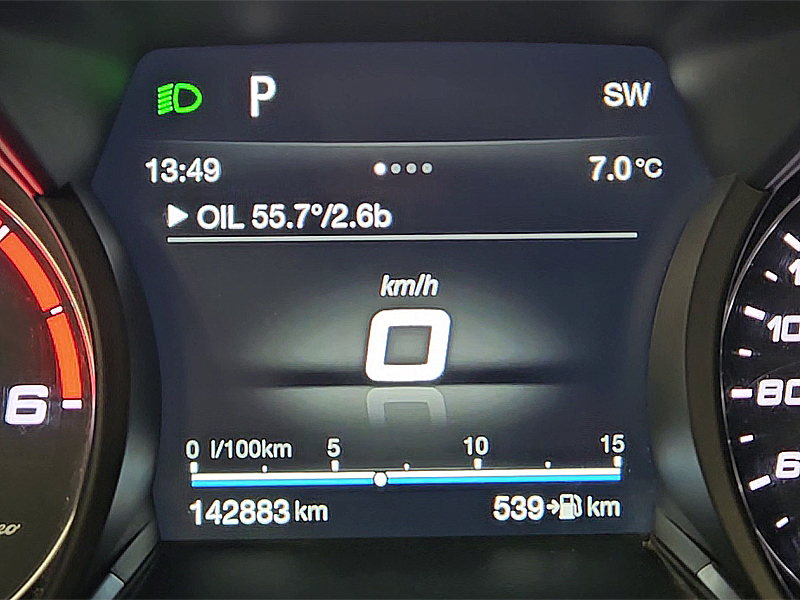
Display 1
Engine oil temperature [°C]/pressure [bar]
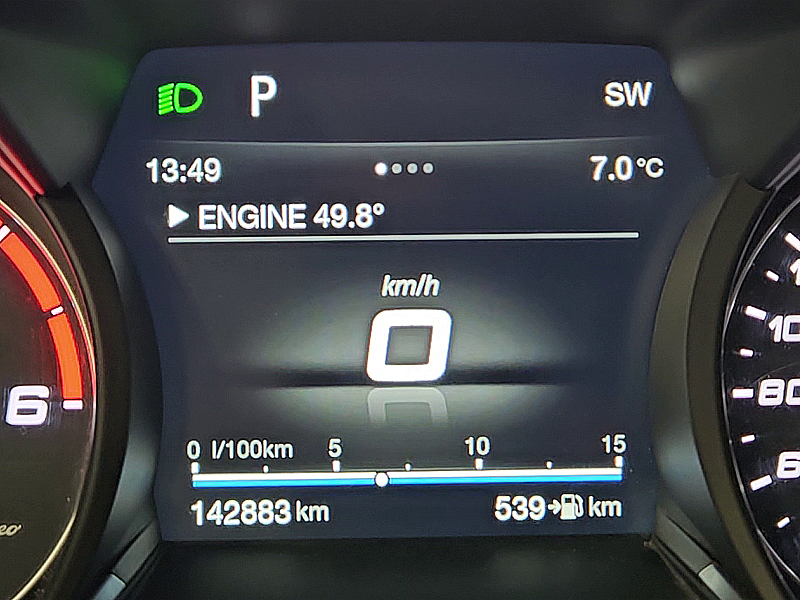
Display 2
Engine coolant temperature [°C]
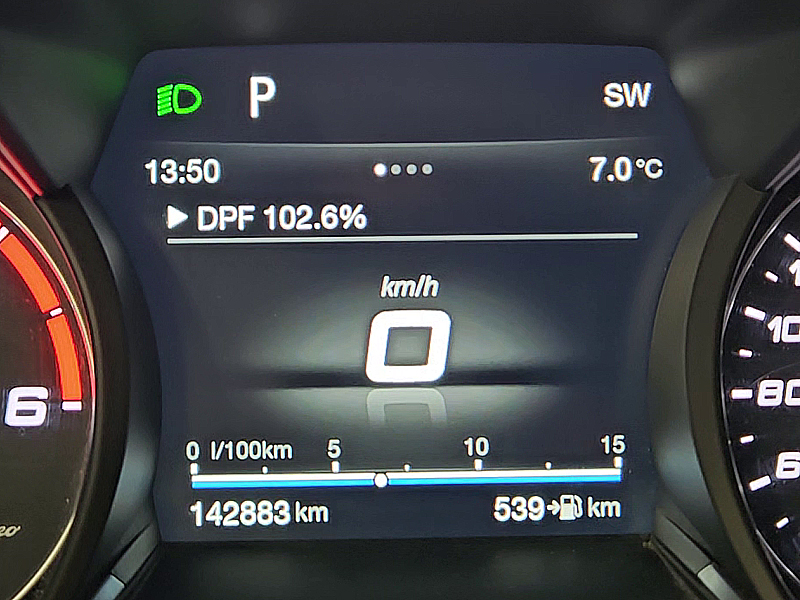
Display 3
DPF status (clogging/regeneration) [%]
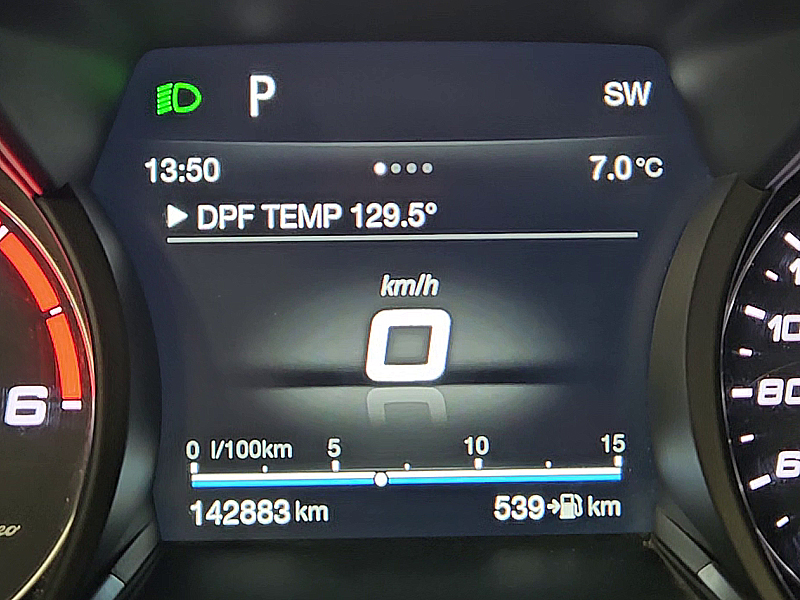
Display 4
DPF temperature [°C]
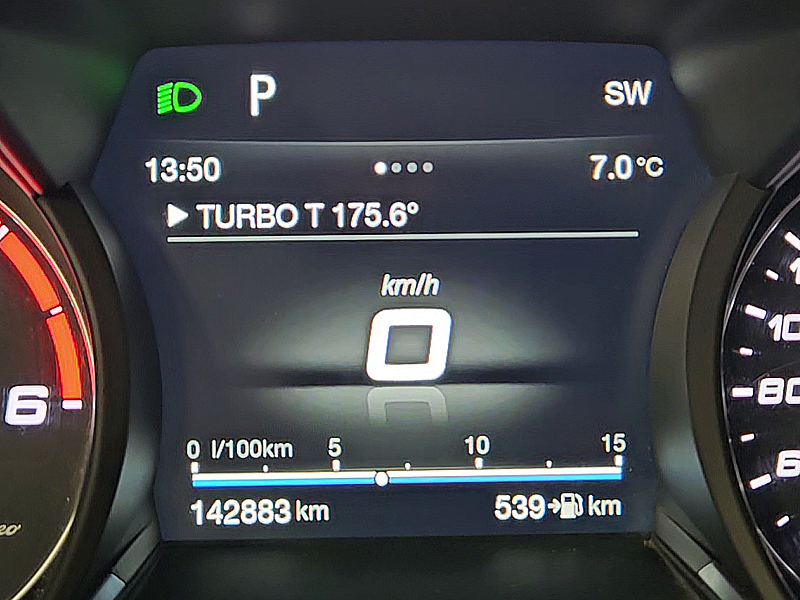
Display 5
TURBO temperature [°C]
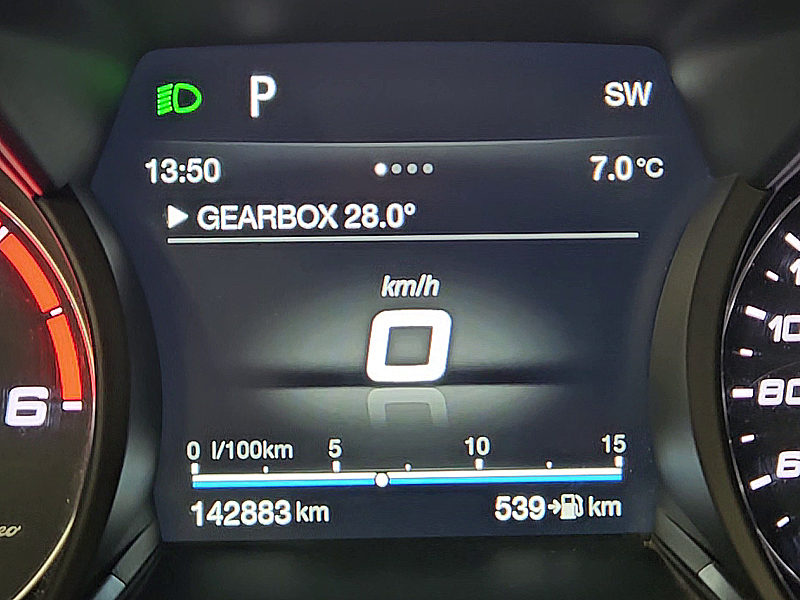
Display 6
AT8 gearbox oil temperature [°C]
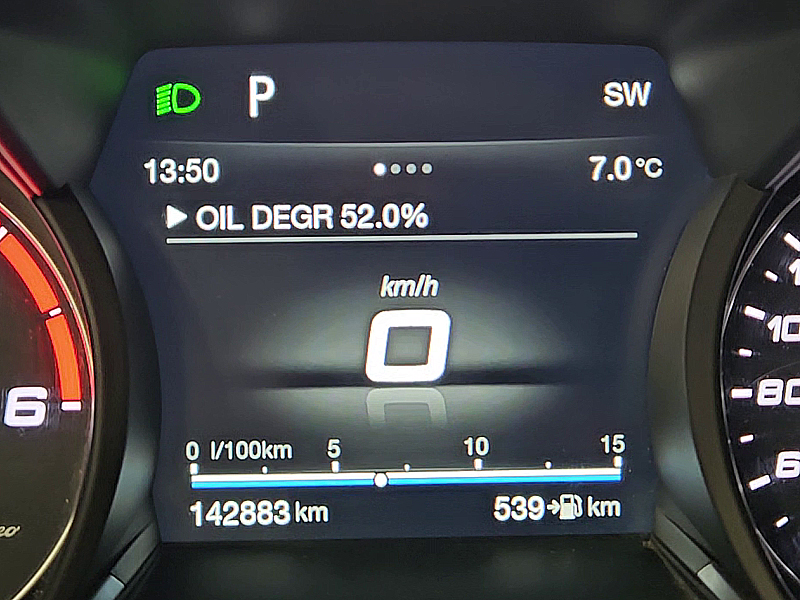
Display 7
engine oil degradation [%]
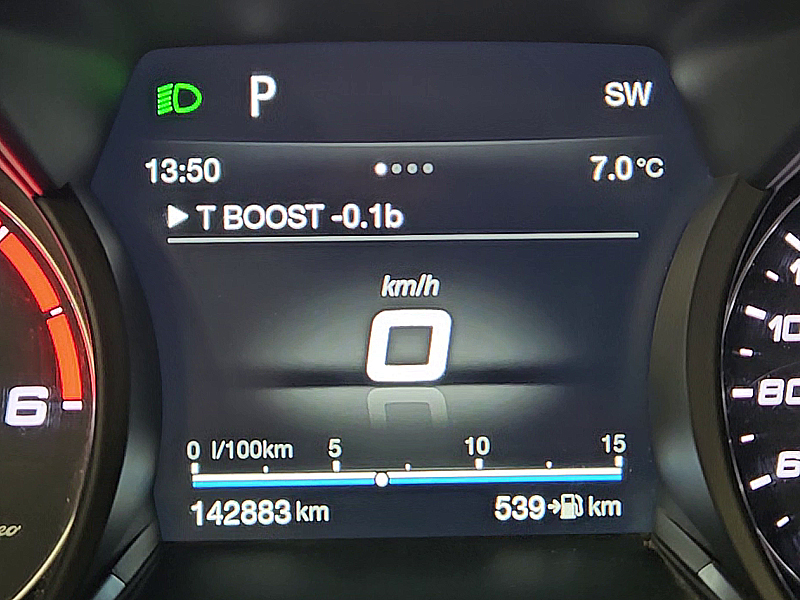
Display 8
turbo boost [bar]
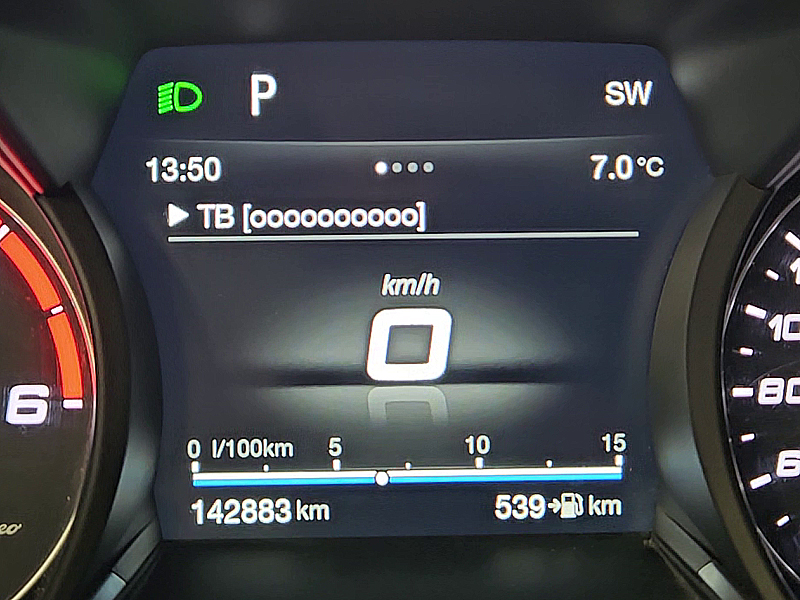
Display 9
turbo boost bar graph [ooooooooo]
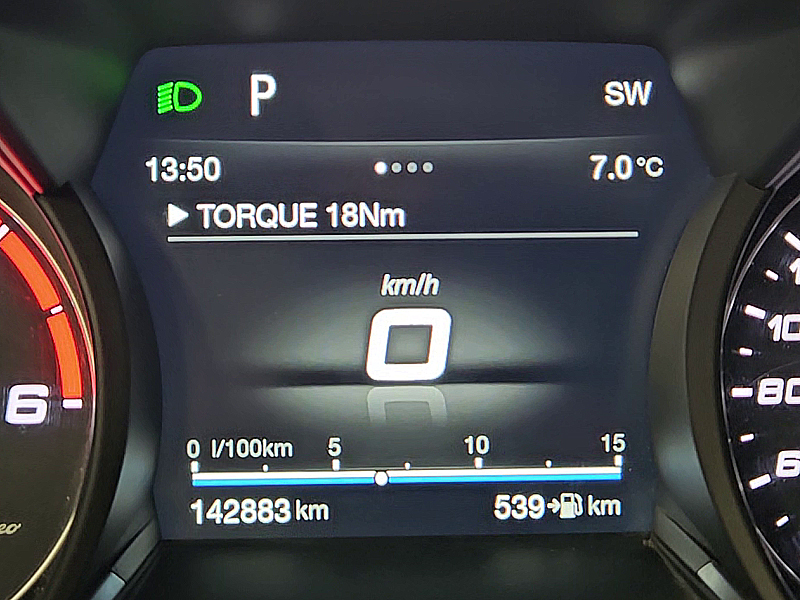
Display 10
torque (actual torque on AT8) [Nm]
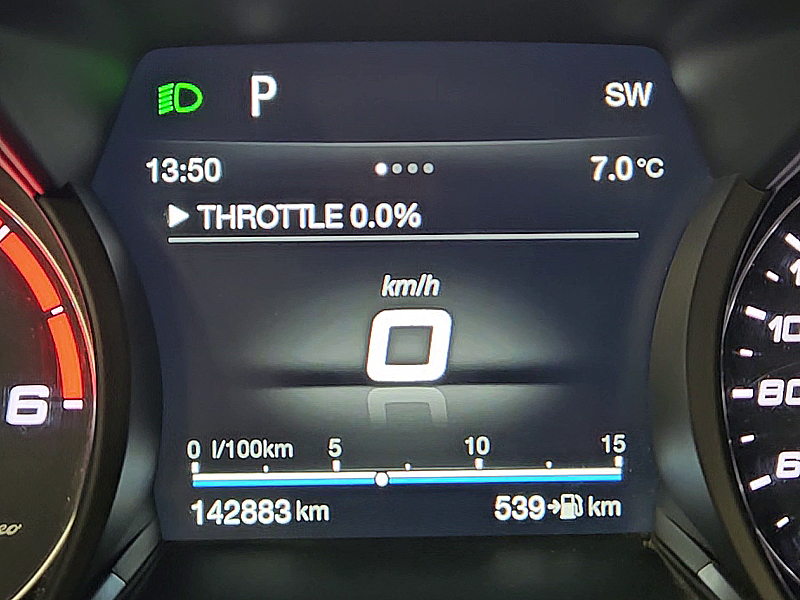
Display 11
accelerator pedal position [%]
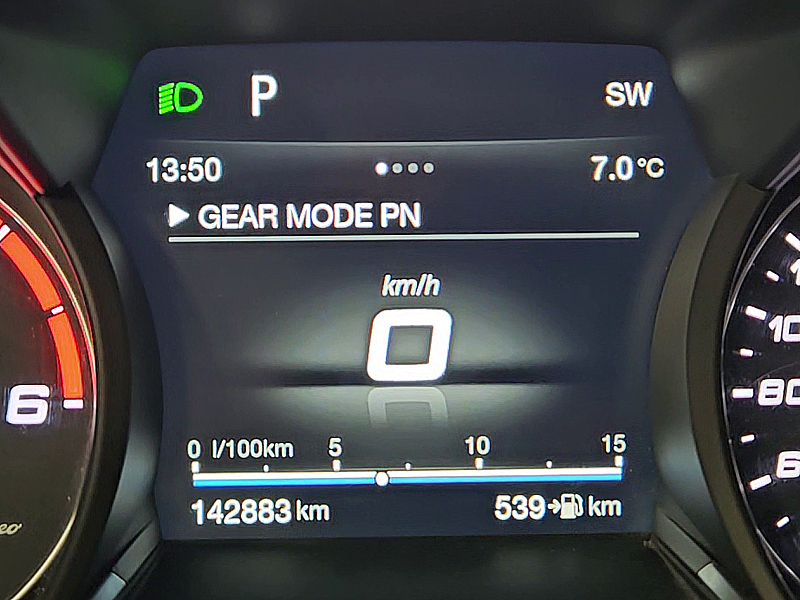
Display 12
AT8 mode|gear: P/D/M | R/N/1/2/3/4/5/6/7/8
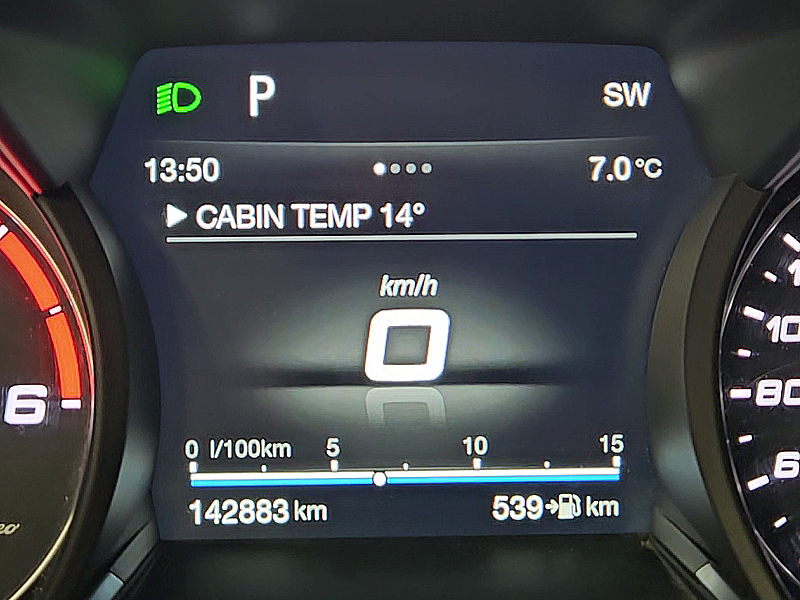
Display 13
cabin temperature [°C]
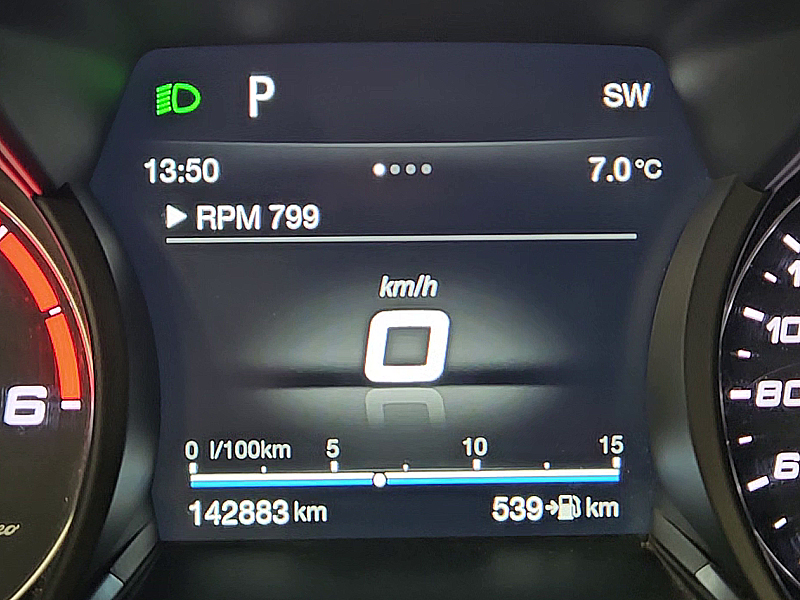
Display 14
engine speed [rpm]
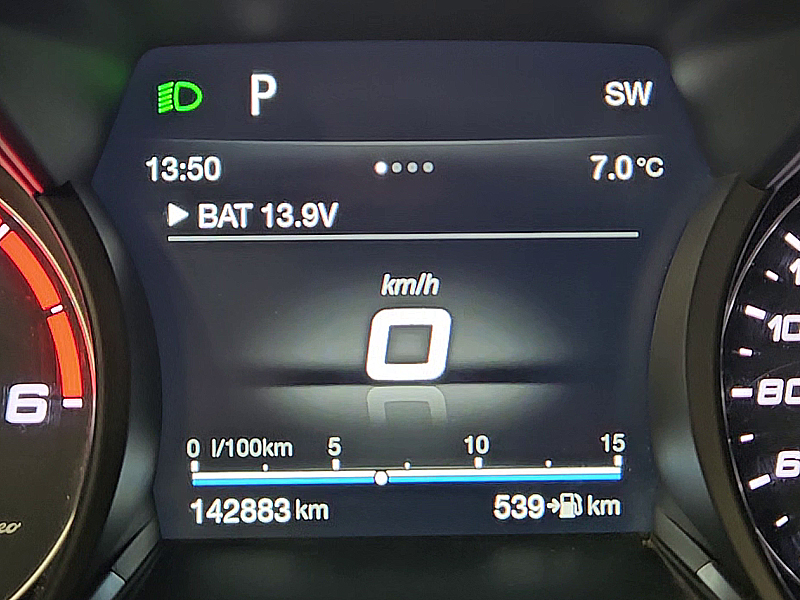
Display 15
battery voltage [V]
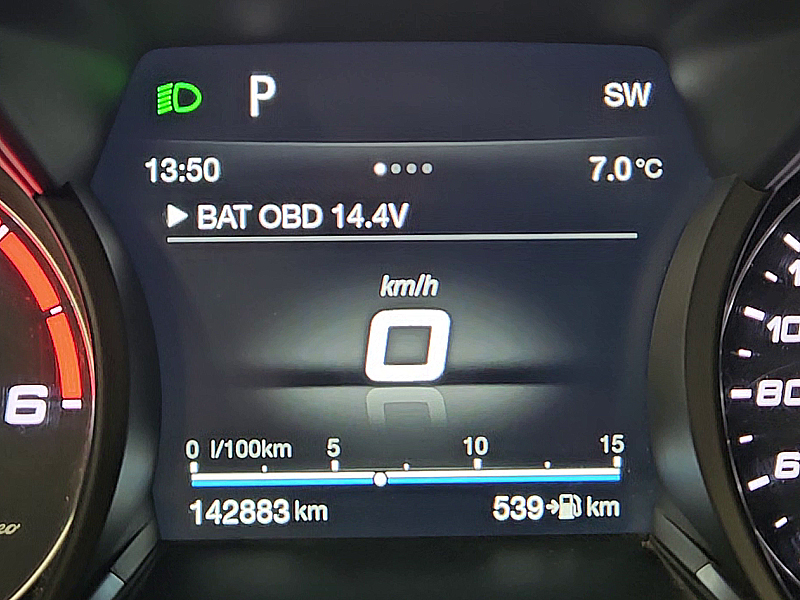
Display 16
OBD battery voltage [V]
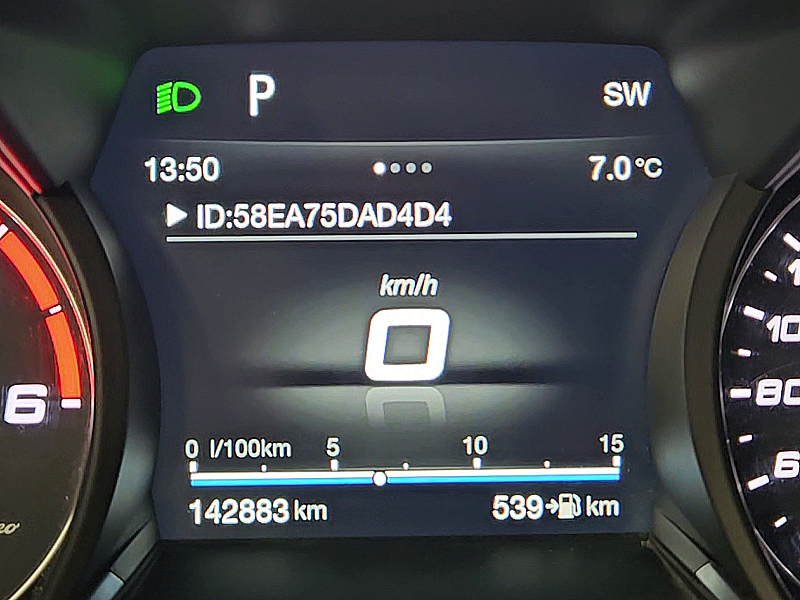
Display 17
Device ID
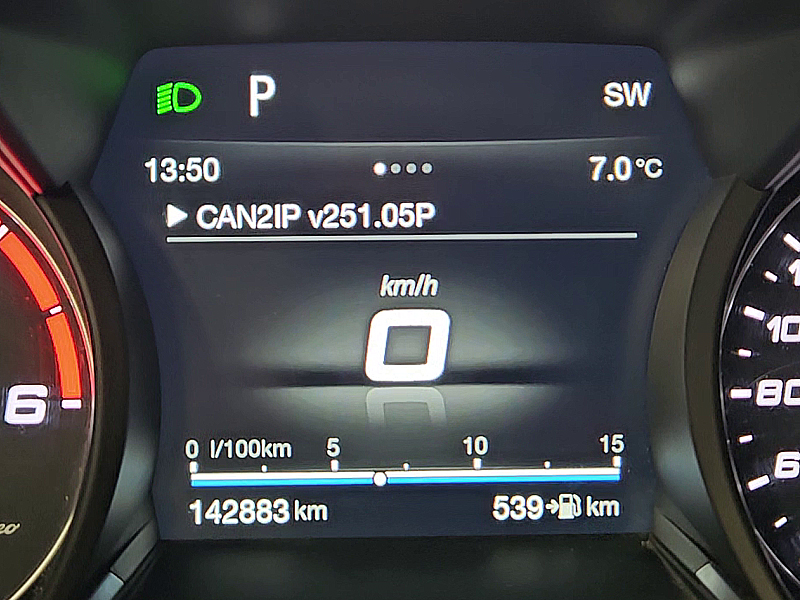
Display 18
SW version
AT8/MT6 CONFIGURATION
Selecting the AT8/MT6 gearbox type
The device is initially set to the AT8 gearbox type. If you have an MT6 gearbox installed, you can configure it as follows:
1. Use the CC SET UP/DOWN buttons to select the menu AT8 mode|gear: P/D/M | R/N/1/2/3/4/5/6/7/8 (Display 12)
2. Press and hold the RES button to select the AT8/MT6 gearbox type
- The MT6 gearbox does not have the option to display the gearbox oil temperature and AT8 torque
WiFi FW UPDATE
FW update via mobile HotSpot
You can update your device to a newer FW version as follows:
1. Use the CC SET UP/DOWN buttons to select the SW version menu (Display 18)
2. Long press the RES button to start the WiFi update
- to update, you must configure a WiFi HotSpot 2.4GHz on your mobile phone with the SSID/PASS settings: default123/default123 and you must have stable internet access
- update progress is displayed on the InstrumentPanel and upon completion you will receive a message about the successful/unsuccessful status
- update takes a few seconds and uses less than 2MB of data traffic
FW CHANGELOG
Latest update: 24.02.2025 CAN2IP v251.09x
- fixed bug in oil pressure display
- minor optimizations
Previous update: 18.02.2025 CAN2IP v251.08x
- upgrade routines for reading CC/ACC keys
- added a new routine for MENU LOCK/UNLOCK: by long pressing the RES button, on all menus except the UPDATE and GEAR MODE menus, the selected display remains even with CC/ACC SET control
CLUSTER settings
For the optimal functioning of the CAN2IP bridge device, it is advisable to turn off the Phone/Audio/Nav info displays in the "Cluster Settings" settings or configure the display according to your needs.
Since the display space on the InstrumentPanel is shared among all other devices, any new information will be "overwritten" over the existing one.